Getting locked out of your learning platform right before a compliance deadline ranks among the most frustrating moments in healthcare training. Maybe you’re a nurse trying to access a CEU course before your shift. Maybe you’re a Medline partner using the portal for the first time. Or maybe you just can’t recall which password you used. Either way, the gap between you and Medline University feels far bigger than it should be.
This guide clears that friction fast. You’ll find the exact login URL, a step-by-step walkthrough, and real fixes for the most common errors — forgotten credentials, browser problems that block access without warning, and more. No guesswork. No runaround.
What Is Medline University, and Who Needs to Log In?
Medline University is a free, accredited online learning platform for healthcare workers. It serves nurses, nursing assistants, clinical staff, and the trainers who support them. Medline Industries runs the platform and offers evidence-based continuing education (CE/CEU) courses. Topics range from chronic wound care and infection prevention to patient safety, IV therapy, and OSHA compliance. No tuition. No textbooks. Just structured, credited clinical education you can access around your schedule.
The course library covers four broad categories:
Clinical skills — wound care, incontinence management, dressing selection, IV therapy
Nursing leadership and process — quality improvement, documentation, patient communication
Compliance and policy — HIPAA, workplace safety, health literacy
Product-specific training — clinical education tied to Medline product applications
Accrediting bodies across nursing, long-term care, and rehabilitation recognize these courses. Completions count toward license renewal in most states.
Who Needs to Log In?
Not everyone reaches Medline University the same way. Your login path depends on your role:
User Type | Why They Log In | How They Access |
|---|---|---|
Hospital / facility staff | Mandatory compliance training, annual recertification | Institution-specific link or HealthStream integration |
Nurses & CNAs | CE credits for license renewal, professional development | Personal account (facility or independent) |
Medline customer staff | Product-related clinical training as a client benefit | Facility link or independent registration |
Independent learners | Self-directed CE credits, certificate collection | “Independent learner” registration by the state |
Medline University Login Page: Where to Find the Official Sign-In Portal
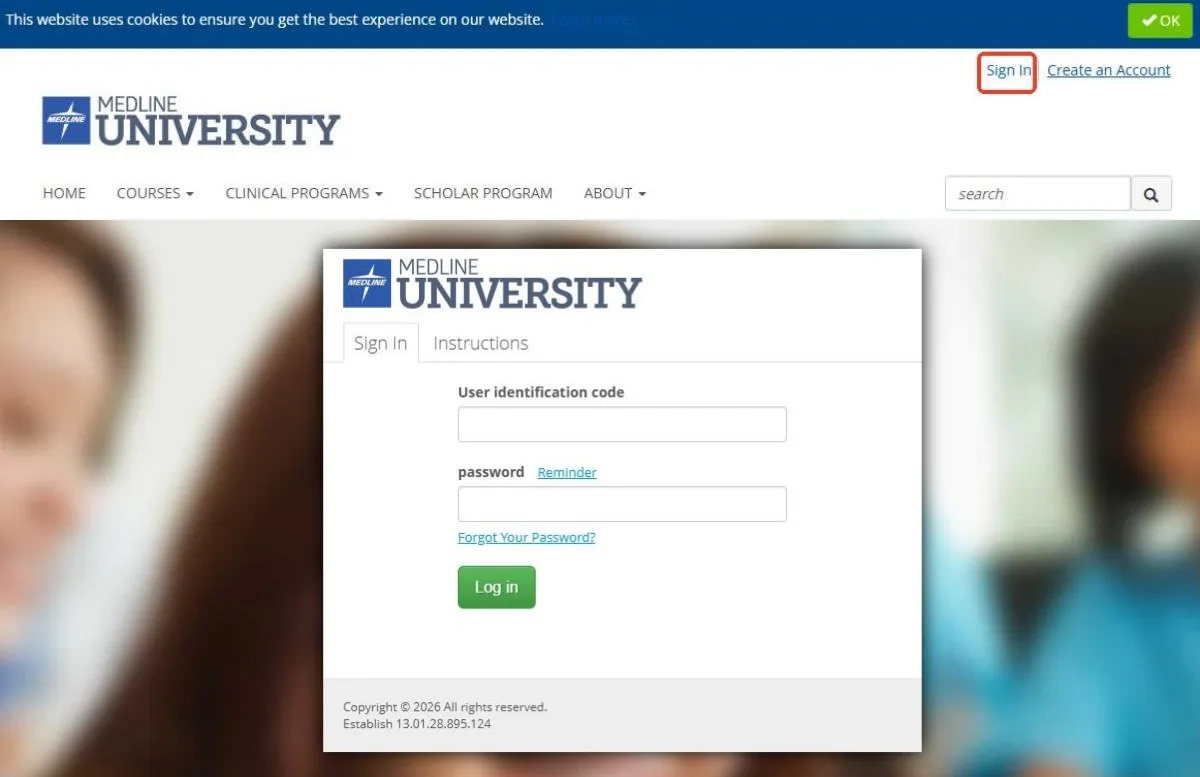
The official login portal has one address: medlineuniversity.com. The “Sign In” button sits in the top-right corner of the navigation bar. It takes about three seconds to spot. Click it, and you’re at the login page. No third-party redirects. No digging through subpages.
Here’s what matters most: your login location depends on how your facility manages training.
Two Different Doors — Know Yours Before You Click
If your facility does NOT use HealthStream:
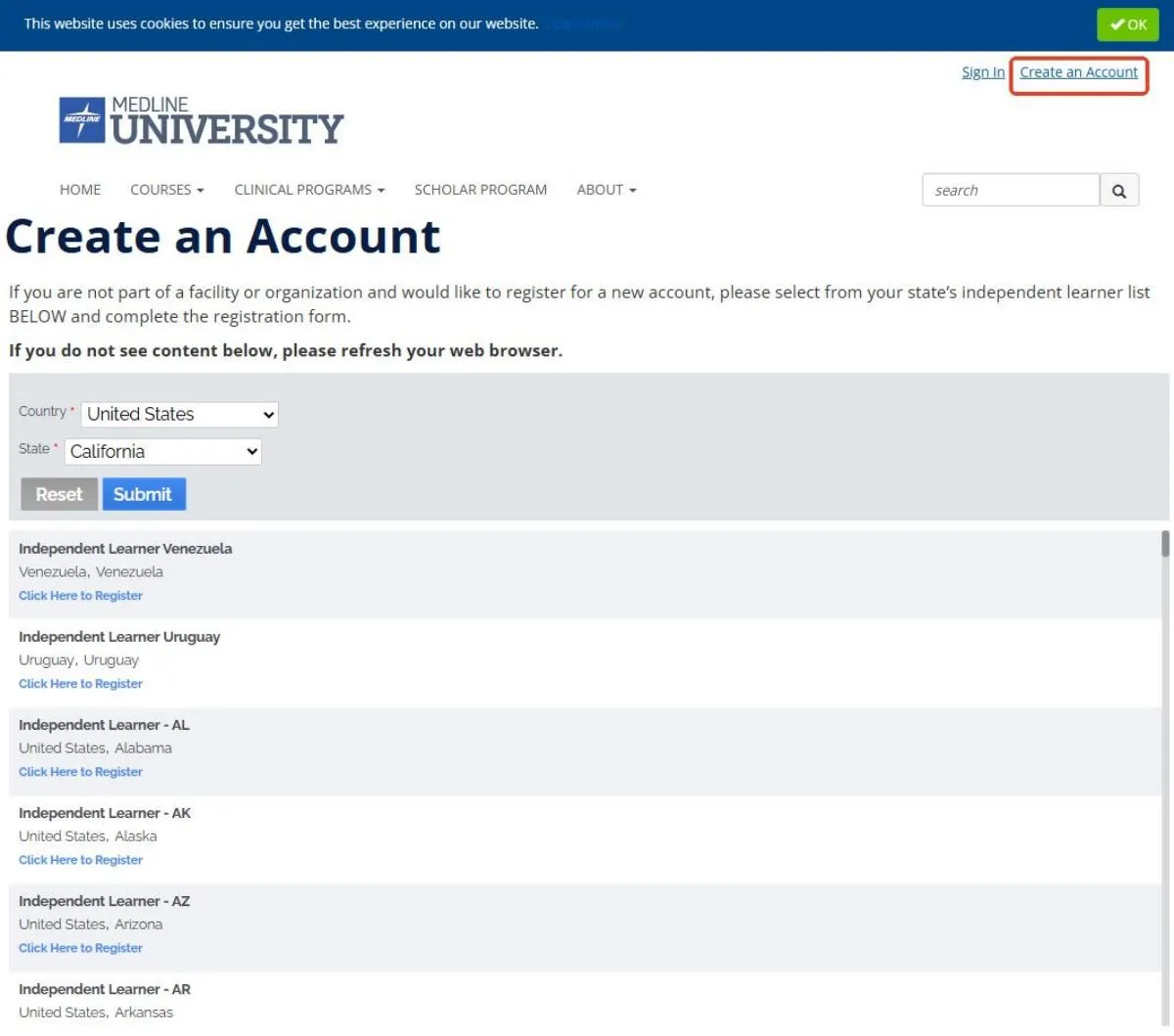
Go to medlineuniversity.com and click “Sign In” in the top navigation. Enter your Medline University credentials to get in. New users should look for the “Create an Account” link in the same navigation area. Click it, pick your state, and fill out the registration form.
If your facility DOES use HealthStream:
Skip the Medline University homepage. Your access point is your institution’s own HealthStream URL — a custom address your employer controls. Once inside HealthStream, go to Catalog → HealthStream Collections → Medline University to find your assigned courses.
Picking the wrong door is the single most common reason login attempts fail from the start.
About a third portal:
medline.wcea.educationalso shows a Medline University login screen, but it serves a specific WCEA-powered partnership program. Unless your employer pointed you there, use the standard paths above.
Logged in, but can’t see your subscribed courses? Please get in touch with the customer service team(see contact details at the end of this blog).
Step-by-Step: How to Sign In to Medline University Without Errors
The whole process takes under a minute — you just need to know what to click.
Open Google Chrome (the recommended browser) and go to medlineuniversity.com . Look at the top-right corner of the page. Two options sit there: “Sign In” and “Create an Account.” You want to sign in .
The Standard 5-Step Login Flow
This path is for independent learners and facility staff whose institution does not use HealthStream.
Go to medlineuniversity.com — use Chrome on a desktop for the most reliable experience. Mobile works for basic browsing, but pop-ups and certificate printing tend to break on phones.
Click “Sign In” in the top-right navigation bar — not “Create an Account.”
Enter your Username/Email and Password — one small thing worth noting: accounts migrated from the old Medline University site keep the same username, but the password was reset. Check your registration email for the new one.
Click the “Sign In” button once — then wait. Clicking it multiple times can trigger a session error or lock your account.
Land on your course dashboard — the top navigation now shows Courses and Catalog. These are your two main entry points for learning.
HealthStream Users: Your Login Is Different
Your facility uses HealthStream as its LMS? Skip medlineuniversity.com. Your login lives at your institution’s own HealthStream URL. Use your employer-assigned credentials — employee ID, email, or prefix rules. Your facility’s IT or education department sets the format, not Medline.
Once inside HealthStream, follow this path: Catalog → HealthStream Collections → Medline University . That pulls up every course available to you.
How to Create a Medline University Account (First-Time Users)
Before you start: Are you an independent learner, or does your facility already use Medline University through HealthStream? That answer decides everything — including whether you need to register at all.
Independent Learners: Step-by-Step Registration
No facility managing your training? Head to medlineuniversity.com and click “Create an Account” in the top-right navigation. From there:
Select your state or region from the independent learner list. Each state has its own entry point.
Complete the registration form. Required fields include:
First and Last Name
Email Address (and confirmation)
Username and Password (minimum 8 characters, letters, and numbers)
State / Region
Profession / Role and Primary Work Setting (required for CE reporting)
Agree to the Terms & Conditions , then click “Submit.”
Check your inbox. A confirmation email will arrive with an activation link. Click it to finish your account setup.
You create your own password during registration — no system-generated credentials to chase down.
Facility Employees: Don’t Self-Register
Your hospital or organization already uses Medline University through HealthStream or an internal LMS? Do not register as an independent learner. That creates a duplicate account, separate from your institution’s records. Your CE completions won’t connect.
Contact your facility education department or HR instead. They’ll activate your account. Your username will follow your employer’s format — often an employee ID. Your initial password comes through internal channels, and you’ll reset it on your first login.
One Thing to Do Right After Logging In
Open My Account / Profile and confirm your email address is correct. CE certificates and course notifications go there.
You’re a facility employee, and your assigned compliance courses aren’t showing up? Reach out to your education department. Don’t browse the catalog and re-enroll on your own — that creates more confusion than it solves.
Medline University Login Not Working? Fix These Common Errors First
Most login failures come down to one of four things: wrong portal, old password, blocked browser settings, or a locked account. Run through these fixes in order — the solution is closer than you think.
Error #1: You’re Logging In Through the Wrong Door
This one causes more frustration than any password issue. Does your facility use HealthStream? Do not go to medlineuniversity.com to sign in. Your credentials don’t live there. They live inside your institution’s HealthStream URL. Go there first. Log in with your employer-assigned credentials. Then navigate to Catalog → HealthStream Collections → Medline University .
Typing your email and password into the wrong login page will always return an error. Your account isn’t broken. The entry point is wrong.
Error #2: Your Password Was Reset During Migration
Your facility moved to HealthStream? Here’s something easy to miss: your username stayed the same, but your password was reset. A new password was emailed to you around the time of migration. Most people never saw it — it landed in spam or got buried.
Search your inbox, including junk folders, for emails with “Medline University,” “HealthStream,” or “password reset.” Look for anything sent around the time your facility made the switch. That email has either your new password or a link to set one. Once you’re in, change it right away so this doesn’t happen again.
Error #3: Browser Issues Are Blocking You
Medline University runs best on Google Chrome — desktop only. On Safari, Internet Explorer, or an older Edge, you may see blank pages, endless loading screens, or a login button that does nothing. Switch to Chrome first.
Even in Chrome, two settings cause problems:
Pop-ups blocked : Quizzes and certificate windows open in new tabs. Chrome blocking pop-ups for medlineuniversity.com means nothing loads. Go to Settings → Privacy and Security → Site Settings → Pop-ups and Redirects and add the site to your Allow list.
Stale cookies : A corrupted session can make your password look wrong — even when it’s correct. Go to Settings → Privacy and Security → Clear Browsing Data , select Cookies and Cached Files , set the time range to All Time, and clear everything. Close Chrome, reopen it, and try again.
Error #4: Your Account Is Locked
After several failed login attempts — three to five is the usual limit — the system locks your account. The error message stops saying “invalid username or password” and no longer responds to a standard password reset.
You’ve tried resetting your password and still can’t get in? Self-service won’t fix a locked account. Call Medline University support.
Error #5: Password Reset Email Never Arrived
You clicked “Forgot Password,” waited, and nothing showed up. Check these before calling:
Search your spam and junk folders for “Medline University” or “password.”
Do you use a work email? Your employer’s server may be filtering automated messages. Check with IT.
Enter the exact email address you used when you registered — one character off sends the reset to the wrong inbox.
10–15 minutes pass, and still nothing after multiple attempts? Skip the reset and go straight to the customer service team.
How to Access Medline University Courses After Logging In?
Your dashboard keeps everything organized and ready. The path to your courses is simple — it just splits into two directions based on how your facility handles training.
If You Log In Through medlineuniversity.com
The top navigation shows two options: Courses and Catalog . Click Courses to see your personal list. From there, browse the full library — over 260 free courses sorted by clinical topic — or type a keyword into the search bar. Something like “wound care” or “health literacy” narrows things down fast.
Click any course title to open its detail page. Before launching, check two things:
Course type : Full-length courses carry CE credit. Microlearning modules do not.
State or discipline restrictions : Some Nursing CE courses have eligibility rules tied to your license.
Click “Start,” “Launch,” or “Enroll” to begin — the label varies by course. The course opens in a new window , so allow pop-ups for the site first.
If Your Facility Uses HealthStream
Your courses will not appear on the Medline site . Go to your institution’s HealthStream URL and log in there. Then follow: Catalog → HealthStream Collections → Medline University . That drop-down shows every course your organization can access.
Some specialty programs need an active subscription. A course missing from the list? Reach out to the customer service team.
After You Finish a Course
Done with a course? Head to the “Completed” tab, click the green “Print” button, and export your transcript from the pop-up window.
CE credit not showing up? Go to Profile → License and check that your discipline is listed — “Registered Nurse” for Nursing CE, for example. A missing entry there is usually the cause.
How to View and Print Your Medline University CE Transcript?
Your completed courses need to be documented. A Medline University CE transcript is more than a record — it’s proof of your professional commitment. You’ll need it for license renewal, compliance audits, or performance reviews. Here’s how to pull it.
View Your Individual Transcript
Log in first, then follow these steps:
From the main navigation, go to My Learning (some versions label this Learning ).
Click the My Transcript tab, then select View Learning Transcript .
Your transcript shows every completed course with:
Course title and course ID
Completion date (mm/dd/yyyy)
Credit type and amount (e.g., 1.0 CE, 0.5 CEUs)
Provider and accrediting body (ANCC, CME, etc.)
Before printing, use the filters at the top of the page. Set a Start Date and End Date to match your licensing cycle. Set Status to Completed. Then select CE/CEU as the course type. This drops non-credited trainings from the list.
Print or Save as PDF
Click Print Transcript — it sits in the upper right corner, though sometimes it’s tucked under a More or Actions menu. A print-ready page opens in your browser.
To save as a PDF: change the Destination to Save as PDF in the print dialog. Confirm Letter size and normal margins. Then save. Name the file clearly — something like MedlineU_CE_Transcript_2024-2026_Lastname.pdf . Store it somewhere easy to find during a license audit.
Quick scenario: Renewing your RN license for a two-year cycle? Set your date range to 01/01/2024–12/31/2025. Filter by Completed CE. Confirm your required topics are present. Then export. Keep one PDF for the licensing board upload and one hard copy in your CE binder.
Administrators: Running Group Transcripts
Managers can pull department-wide reports through Admin → Reports → Student Transcript Report . Filter by unit, date range, and course type. Then export in the format you need:
PDF — for surveyors, Joint Commission binders, or compliance documentation
CSV/Excel — for internal dashboards, pivot tables, and tracking completion rates by department
Medline University Support: How to Reach the Help Team

Support is available. You just need to know which option fits your situation.
Medline University has three contact options — phone, email, and live webinars. Picking the right one saves you real time.
Phone support is your fastest route for urgent issues:
📞 1-800-216-5954 → Option 1 → Option 4 (Medline University Support)
Call for same-day compliance deadlines, locked accounts, or system errors blocking your progress. Email can wait. A locked account the night before a recertification deadline cannot.
Email support covers everything non-urgent:
📧 [email protected]
Use it for missing courses, subscription access questions, or issues that need screenshots and documentation. Include your name, username, facility, and the course or program you can’t locate.
Not sure where to start? Go to the Support section at the bottom of medlineuniversity.com. You’ll find: – FAQ — covers browser issues, certificate downloads, and CE credit questions – User Training Webinar Schedule — free live sessions great for new users and administrators – contact us page — a simple form for non-urgent requests
One thing to do first: try the “Forgot Password” self-service tool before you call. That tool fixes most login problems on its own. It fails, and the deadline is close? Go straight to the phone.
Conclusion

Logging into Medline University should be simple. It shouldn’t stand between you and the training you need. New to the portal or coming back after a reset — you have everything you need to get in and get started.
Bookmark the official login page. Save your credentials somewhere safe. Most errors have a simple fix, just one step away.
Your Medline University online learning journey deserves protection from small technical setbacks. The CEUs, the compliance courses, the professional growth inside the platform — none of that should stop because of a forgotten password or a stubborn browser tab.
So close this guide. Open that login page. Walk straight through the door.
You’ve got this — and now you know how.